
Choose a color, control rotation and set a duration. The MOSLOCK app provides separate controls for the device's functions. This guide uses actual screens extracted from the user manual.
Install the app and pair for the first time
Install the MOSLOCK app on your phone. These links open the official Android and iPhone app stores.
Android · Google Play ↗iPhone · App Store ↗
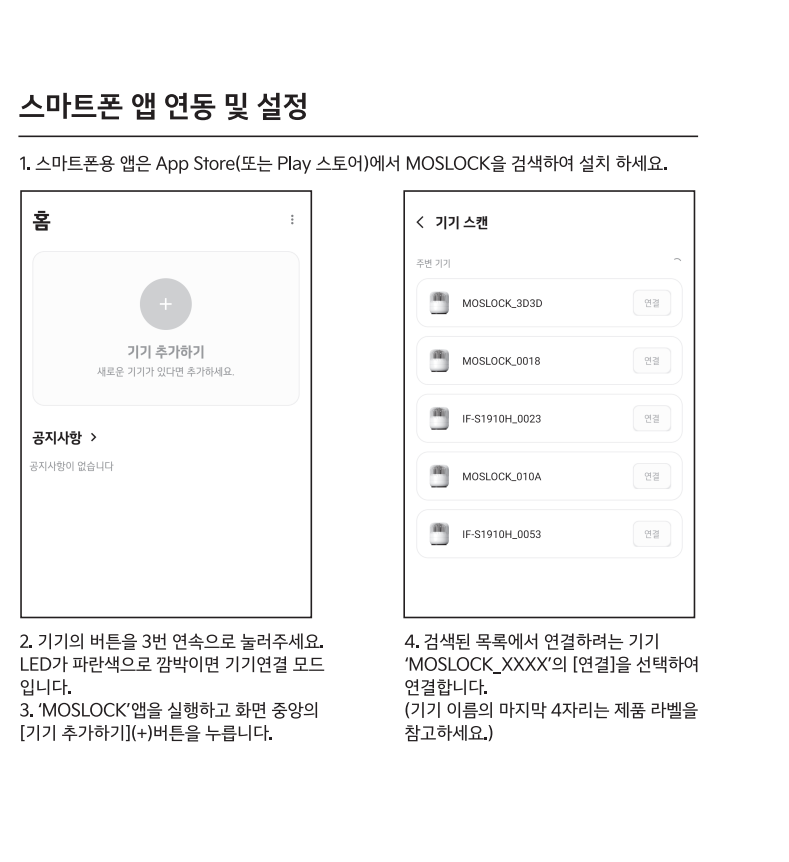
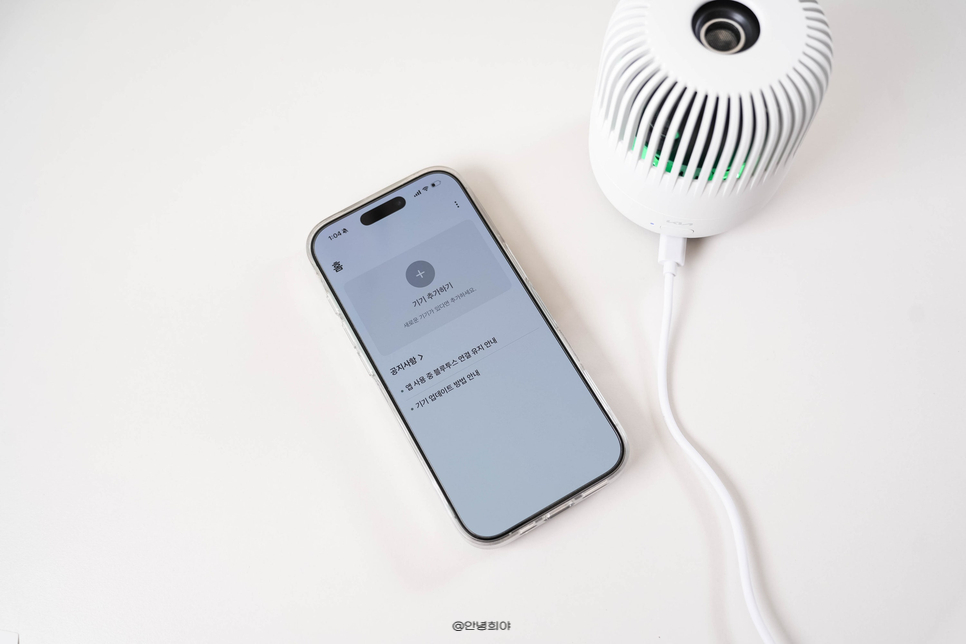
- Connect the product to power.
- Follow the manual and press the button three times to enter pairing mode. Check for a flashing blue LED.
- In the app, select Add deviceand search for nearby devices.
- MOSLOCK_XXXXto connect. Compare the last four digits with the product label to confirm it is your unit.
Control functions separately
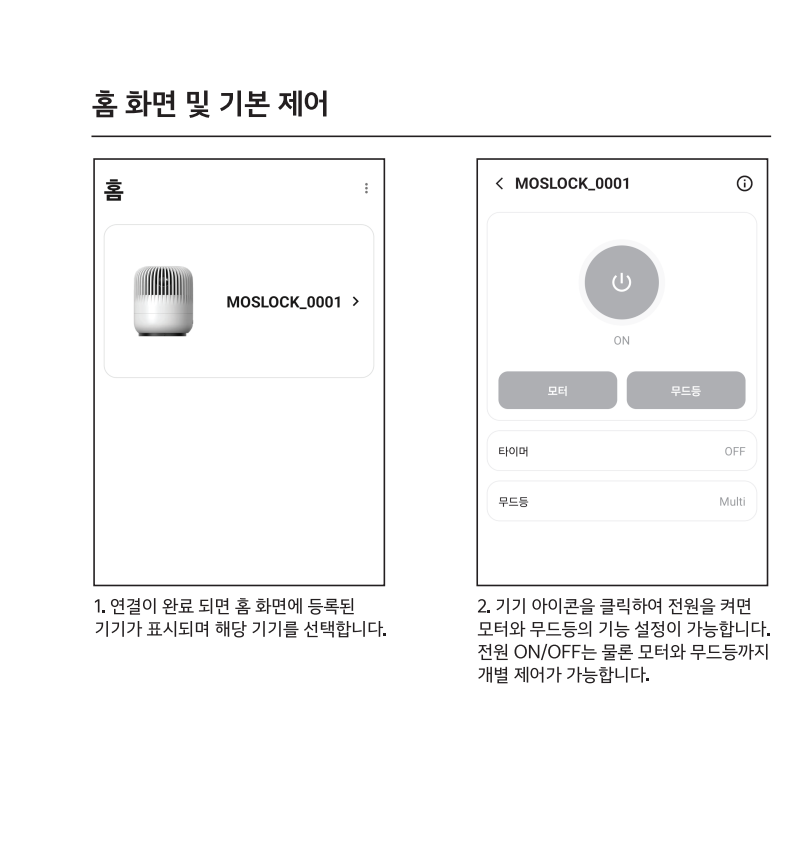
After pairing, the device screen shows ON/OFF, motor and mood-light controls. Control operation, rotation and lighting separately. Screens may vary by app version, so check the labels in your installed app.
Timer and mood-light settings
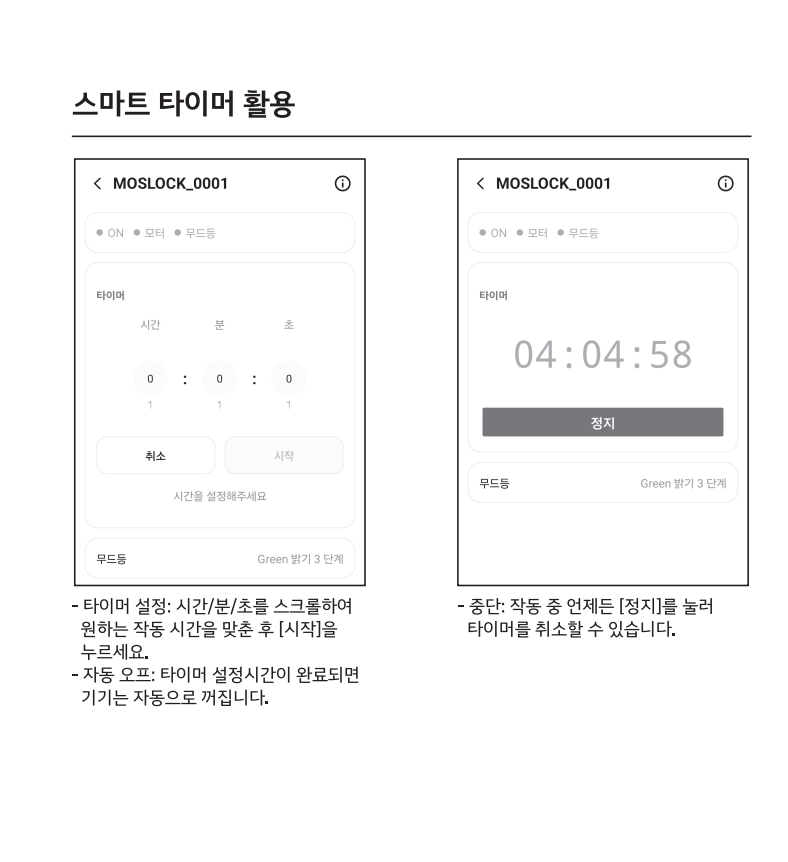
Set the timer in hours, minutes and seconds, then start or stop it. Mood lighting offers eight solid colors, Multi mode and three brightness levels.
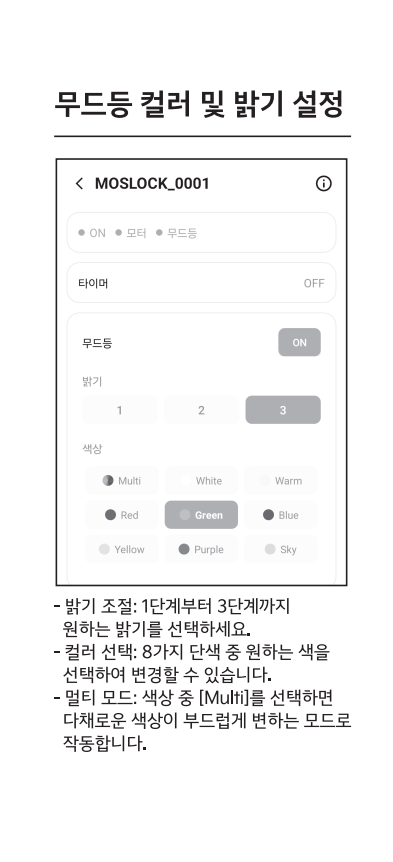
Check power, pairing-mode indicators, Bluetooth and permissions requested by the app. Refer to the original manual for operation and safety. Do not use the app while driving; adjust settings only while parked.
View MOSLOCK user manual PDF (Korean) ↗
Materials and sources
- MOSLOCK user manual: pairing, main screen, timer and mood-light panels. Screens were extracted from the original PDF, not redrawn.
- Google Play — MOSLOCK / App Store — MOSLOCK.
- Annyeonghuiya's Naver blog: sponsored product-provided advertising photographs, with original watermark retained.